 Mega4up

Most PDF jobs can be done with free tools you already have: Word converts text PDFs, Google Docs pulls text out of scanned pages, and printing to PDF cuts out the pages you want without installing anything. Before you start, open the file and try to select a single word. That one test tells you which tool to use for converting and for shrinking.
| You want to | On a PC | On a phone |
|---|---|---|
| Edit a PDF’s text | Word for text PDFs, Google Docs for scans | Google Docs in the browser |
| Save a Word file as PDF | Save As in Word, Export as PDF in LibreOffice | Print, then Save as PDF |
| Make a PDF smaller | Ghostscript, offline | Adobe’s Compress PDF in the browser |
| Merge files or delete pages | PDFsam Basic, or print to PDF | Files app on iPhone, Adobe’s Merge PDF on Android |
| Turn paper into a PDF | A scanner set to grayscale | Google Drive’s scanner, or the iPhone Files app |
In this guide
First test: text or pictures?
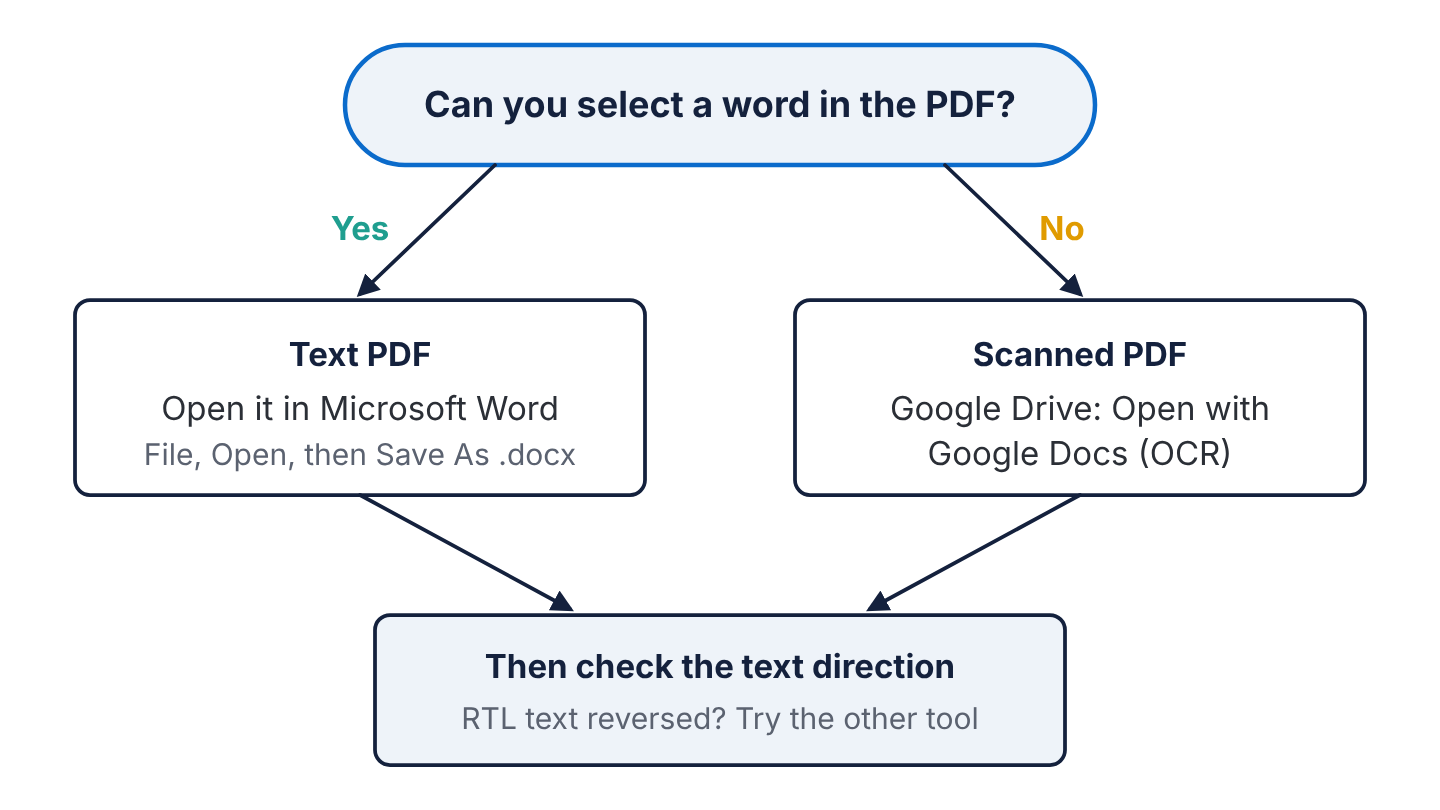
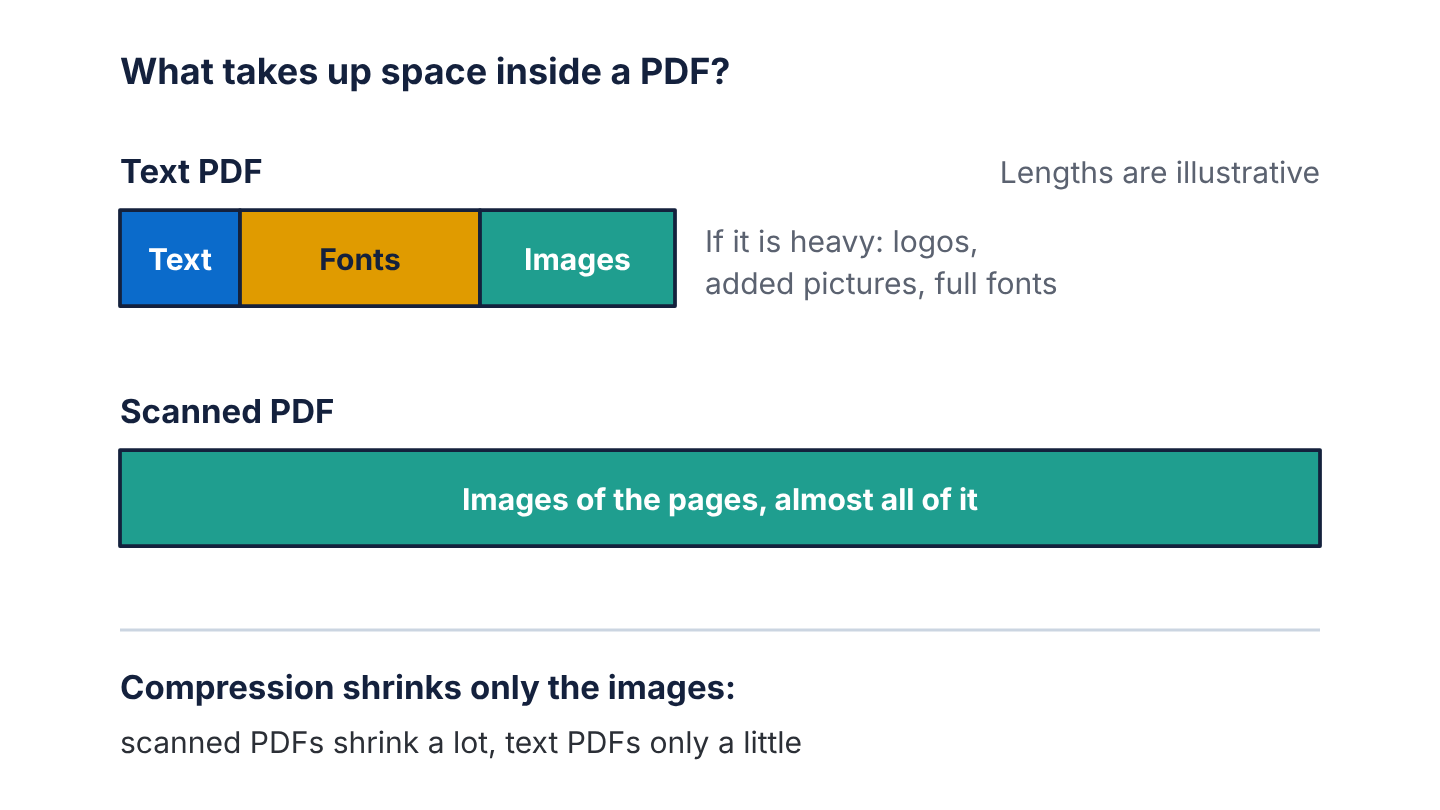
If the word highlights, the PDF contains real text, probably exported from Word or an accounting program. If nothing highlights, the PDF is scanned: every page is a photo. Word cannot pull text from it, and it is heavy. A 12-page contract photographed in color with a modern phone can reach tens of megabytes, while the same contract typed in Word and saved as PDF is usually a few hundred kilobytes.
Convert a text PDF to Word
Word 2013 and later open PDFs directly, convert them on your own computer with no internet, and leave the original untouched.
- In Word, go to File > Open and choose the PDF.
- Word says it will convert the PDF into an editable document. Click OK.
- Review the result, then File > Save As and pick
.docx.
Text-heavy documents come out well; pages full of tables and columns tend to shift.
Turn a scanned PDF into editable text with Google Docs
When you open a PDF with Google Docs, Google Drive runs OCR (optical character recognition) automatically and detects the language, including right-to-left scripts such as Arabic.
- In Google Drive, click New > File upload and select the PDF.
- Right-click the uploaded file and choose Open with > Google Docs.
- A new document opens with the extracted text.
- Go to File > Download > Microsoft Word (.docx).
Google’s help page for this feature currently says the file must be 2 MB or smaller. A color scan blows past that easily, so shrink it first (see below) or split it into a few pages at a time. The same page warns that lists, tables, columns and footnotes are unlikely to be detected, that pages must be right side up, and that text should be at least 10 pixels high. A straight, evenly lit page gives far cleaner text than a tilted phone photo with your hand’s shadow on it.
Reversed or broken right-to-left text
Arabic, Hebrew and Persian sometimes come out reversed or with disconnected letters, because some PDFs store characters in display order rather than reading order. Try these in order:
- Switch tools. If Word reverses the words, Google Docs may get the same file right, and the other way round.
- Select the text and click Right-to-Left Text Direction on the Home tab.
- Change to a font with proper support for the script, such as Arial, Tahoma or Times New Roman. Decorative fonts often break letters.
- When you create the PDF yourself, save straight from Word or LibreOffice instead of an old virtual printer driver.
If you see boxes or random symbols instead of letters, the PDF’s font is not embedded or not supported, and no tool fixes that reliably. Retyping the affected paragraphs is sometimes the fastest route.
Word to PDF
- Microsoft Word: File > Save As > PDF. Under the options, Standard is for printing and Minimum size (publishing online) gives a smaller file that is fine for email and web forms.
- LibreOffice Writer: File > Export as PDF. Free, offline, and fine on old PCs.
- Google Docs: open the Word file from Drive, then File > Download > PDF Document (.pdf).
- On Android: open the document in Google Docs or the Word app, or choose Print and then Save as PDF instead of a printer.
Make a PDF smaller
Images, not text, make PDFs heavy. Any compressor that works lowers the resolution of the pictures inside and recompresses them, so scanned PDFs shrink a lot and text PDFs only a little.
In the browser, on a PC or phone
Adobe, which created the PDF format, has a free Compress PDF tool that runs in Chrome on Android and Safari on iPhone: select the file, pick a level, download the result without an account. Start with Medium; High can turn stamps, signatures and small print into mush. Remember that any online tool means uploading your document to someone else’s server, so keep passports and bank statements offline.
Offline: Ghostscript on Windows
- Install the Windows build from the official Ghostscript site.
- Put the PDF in a folder such as
C:pdfand name itbig.pdf. - Open Command Prompt and run
cd C:pdf. - Run:
gswin64c -sDEVICE=pdfwrite -dCompatibilityLevel=1.4 -dPDFSETTINGS=/ebook -dNOPAUSE -dQUIET -dBATCH -sOutputFile=small.pdf big.pdf
A new small.pdf appears next to the original. If the command is not recognized, type the full path to gswin64c.exe, usually under C:Program Filesgs, then a version folder, then bin. Swap /ebook (about 150 dpi, the sensible default) for /screen (72 dpi, smallest, roughest) or /printer (300 dpi, for printing).
Zipping a PDF or compressing it twice gains almost nothing. Before compressing, ask whether every page is needed; deleting the 27 pages nobody asked for shrinks the file without touching quality. Afterwards, zoom in on the smallest important detail, such as an ID number. If it is blurry, go back one level, and always keep the original. Still too big for email? Use one of these free ways to send large files.
Merge PDFs, or extract and delete pages
On Windows: PDFsam Basic
PDFsam Basic is open source, adds no watermark, has no size cap and never uploads your files. Paid Enhanced and Visual editions exist; Basic is the free one.
- Choose Merge and drag your PDFs into the window.
- Reorder them with the move buttons; list order is final order.
- In the page range column, type something like
1-3to take only those pages, or leave it blank. - Choose where to save and click Run.
There is no “delete page” button because Extract does the job: to drop page 5 of 12, extract 1-4,6-12. Rotate fixes upside-down scans, and Mix interleaves fronts and backs from a one-sided scanner.
The print-to-PDF trick
To keep just some pages, open the PDF in Edge or Chrome, press Ctrl + P, choose Microsoft Print to PDF or Save as PDF, and type a custom range such as 2-5. On Android, open it in Google Drive, tap the three dots, Print, Save as PDF, and change Pages from All to a range. Links, bookmarks and fillable fields may be lost.
On a phone
On iPhone, put the files in one folder in the Files app, tap the three dots, Select, pick them, then Create PDF from the three dots at the bottom. Order follows file names, so rename them 01, 02, 03 first. On iOS 26, PDFs open in the new Preview app, where deleting a page from the thumbnails may look slightly different. Android has no built-in merge, so the simplest route is Adobe’s free Merge PDF in Chrome, no sign-in needed; its page currently allows up to 100 files, 500 pages per file and 1,500 pages in total, limits that can change. For ID cards and payslips, merge on a PC with PDFsam instead.
Scan paper to PDF with your phone
On Android, open Google Drive and tap the camera button at the bottom (or + then Scan, depending on the version). It captures automatically, then offers Crop & Rotate, Filter and Clean. Tap Add for more pages, then Done, name it, and Save. On iPhone, open the Files app, tap the three dots, Scan Documents, then Keep Scan and Save; Notes has the same scanner under its attachment button on iOS 26.
For a clean scan, put white paper on a dark surface, use daylight rather than a ceiling lamp that throws your shadow, hold the phone flat above the page, and pick grayscale for text pages. A page with a colored stamp can be scanned in color on its own and merged in.
Snags that hit every tool
- Password-protected PDF: Word and merge tools refuse it or ask for the password. Ask the owner.
- Digitally signed PDF: merging, deleting pages or compressing invalidates the signature. Send it as is, as a separate file.
- Merged file too big: it is roughly the sum of its parts, so compress after merging.
One rule covers all of the above: personal papers get processed on your own device with Word, LibreOffice, Ghostscript, PDFsam or your phone’s scanner, and online tools are for files you would not mind a stranger seeing.