 Mega4up


On Android, install ZArchiver, tap the file and extract. On an up-to-date Windows 11 PC, double-click the archive and it opens like a folder. On Windows 10, or when the archive is password protected or split into parts, install the free 7-Zip. The rest of this page covers every other archive job, so jump to the one you need.
In this guide
- Which task do you have?
- Open RAR and 7z on Android
- Windows 11: try it before installing anything
- Windows 10, or when Windows 11 gives up: 7-Zip
- Still using WinRAR? Check the version number
- Password protect an archive
- Split a large file into parts, and join them again
- tar, gz and tar.gz files
- When you get an error
- Special cases
Which task do you have?
| Task | Android | Windows |
|---|---|---|
| Open RAR, 7z or ZIP | ZArchiver or the RAR app | Windows 11 built in, or 7-Zip |
| Password protect an archive | ZArchiver | 7-Zip (Windows alone can’t) |
| Split a big file, or join .001 / part1 files | ZArchiver or the RAR app | 7-Zip |
| Open tar, gz or tar.gz | ZArchiver | Windows 11, the tar command on Windows 10, or 7-Zip |
| Make sure WinRAR is safe | Not needed | Update to 7.13 or later |
Open RAR and 7z on Android
ZIP has been supported everywhere for years. RAR is a proprietary format from RARLAB, the company behind WinRAR, and 7z is the native format of the open source 7-Zip project. Files by Google and most built-in file managers extract ZIP only, as Google’s own help page says, so the file is usually fine. You are just missing the right app.
- Install ZArchiver from Google Play and check that the developer is ZDevs. There are plenty of lookalike names.
- Open it and grant file access. Without that permission the folders look empty and it seems like your download vanished.
- Go to the Download folder, where browsers and most apps save files.
- Tap the archive once. If it holds lots of files, pick the option that extracts into a new folder named after the archive rather than Extract here, so fifty photos don’t land on top of your other downloads.
Need just one file from a big archive? Choose View and extract only that file. ZArchiver handles RAR, RAR5, 7z, tar, gz and split archives, and its store listing says it has no internet permission.
The alternative is the official RAR for Android app from RARLAB. It is free with ads, and its real advantage is a built-in Repair command for damaged archives. Tick the box next to the file, tap the extract icon at the top, choose a folder and tap OK.
Windows 11: try it before installing anything
Microsoft added RAR, 7z and tar.gz extraction to File Explorer starting with the 23H2 update, and its support page lists ZIP, RAR, 7z and TAR on version 24H2. Double-click the file and drag out what you need, or right-click and choose Extract All. To check your version, press Windows + R, type winver and press Enter.
Since 24H2, File Explorer can also create 7z and TAR archives, not just ZIP: right-click the files, choose Compress to, then pick the format. The built-in support still has clear limits:
- No encrypted archives, either opening or creating them. Microsoft’s page says so directly.
- No split archives such as
.7z.001. - No creating RAR files.
Hit any of those and you need 7-Zip.
Windows 10, or when Windows 11 gives up: 7-Zip
- Download it from the official site, 7-zip.org, and nowhere else. Most current PCs are 64-bit; very old ones may be 32-bit.
- Run the installer, click Install, then Close.
- Right-click the archive. On Windows 11, click Show more options first to reveal the 7-Zip menu. That applies to every 7-Zip command on this page.
- Choose Extract to “name” so everything lands in a tidy folder named after the archive.
7-Zip extracts RAR files without trouble. The only thing it cannot do is create new RAR archives, which few people ever need.
Still using WinRAR? Check the version number
In July 2025 RARLAB fixed a serious WinRAR flaw, CVE-2025-8088. A specially crafted RAR file opened in an older version could quietly drop a malicious file into the Windows Startup folder, so it ran the next time you signed in. The fix shipped in WinRAR 7.13 on 30 July 2025. Even so, Google Threat Intelligence reported on 27 January 2026 that many groups were still exploiting it, because so many PCs were never updated.
- Open WinRAR, click Help, then About WinRAR, and read the version.
- If it is below 7.13, download the latest version from the official win-rar.com site and install it over the old one. WinRAR does not update itself.
- Or uninstall it and use the Windows 11 built-in tool or 7-Zip instead.
According to RARLAB, only the Windows builds were affected; RAR for Android and the Linux versions were not. Be especially wary of RAR files that arrive on WhatsApp or Telegram posing as an invoice or a CV.
Password protect an archive
The encryption method decides how safe the archive is, not the file extension, and two small settings in the 7-Zip dialog decide whether it is actually protected or only looks protected.
| Format | Encryption | Can hide file names | What the recipient needs |
|---|---|---|---|
| 7z | AES-256 | Yes | 7-Zip or another app that supports 7z |
| ZIP with AES-256 | AES-256 | No | An AES-capable app; Windows alone cannot open it |
| ZIP with ZipCrypto | Legacy, weak | No | Opens almost anywhere, but is not secure |
| RAR (RAR5) | AES-256 | Yes | WinRAR, 7-Zip or the RAR app |
Rule of thumb: 7z with hidden file names when privacy matters, ZIP with AES-256 when the other person only knows ZIP. Tell the recipient up front that they will need 7-Zip or ZArchiver, so they don’t assume the file is broken.
With 7-Zip on Windows
- Select the files or folder, right-click, then choose 7-Zip, Add to archive…
- Set Archive format to 7z or zip.
- Under Encryption, type the password in Enter password and again in Reenter password.
- Look at Encryption method. For ZIP the default is usually ZipCrypto, so switch it to AES-256 yourself. It is the most common slip, and it produces an archive that looks locked but is weak.
- If you chose 7z, tick Encrypt file names, then click OK.
Without Encrypt file names, only the contents are encrypted. Anyone can open the archive and read the names, sizes and dates with no password. A file called “bank-statement.pdf” says plenty even if nobody can open it. Only 7z and RAR can hide names, which is why they always show in a protected ZIP.
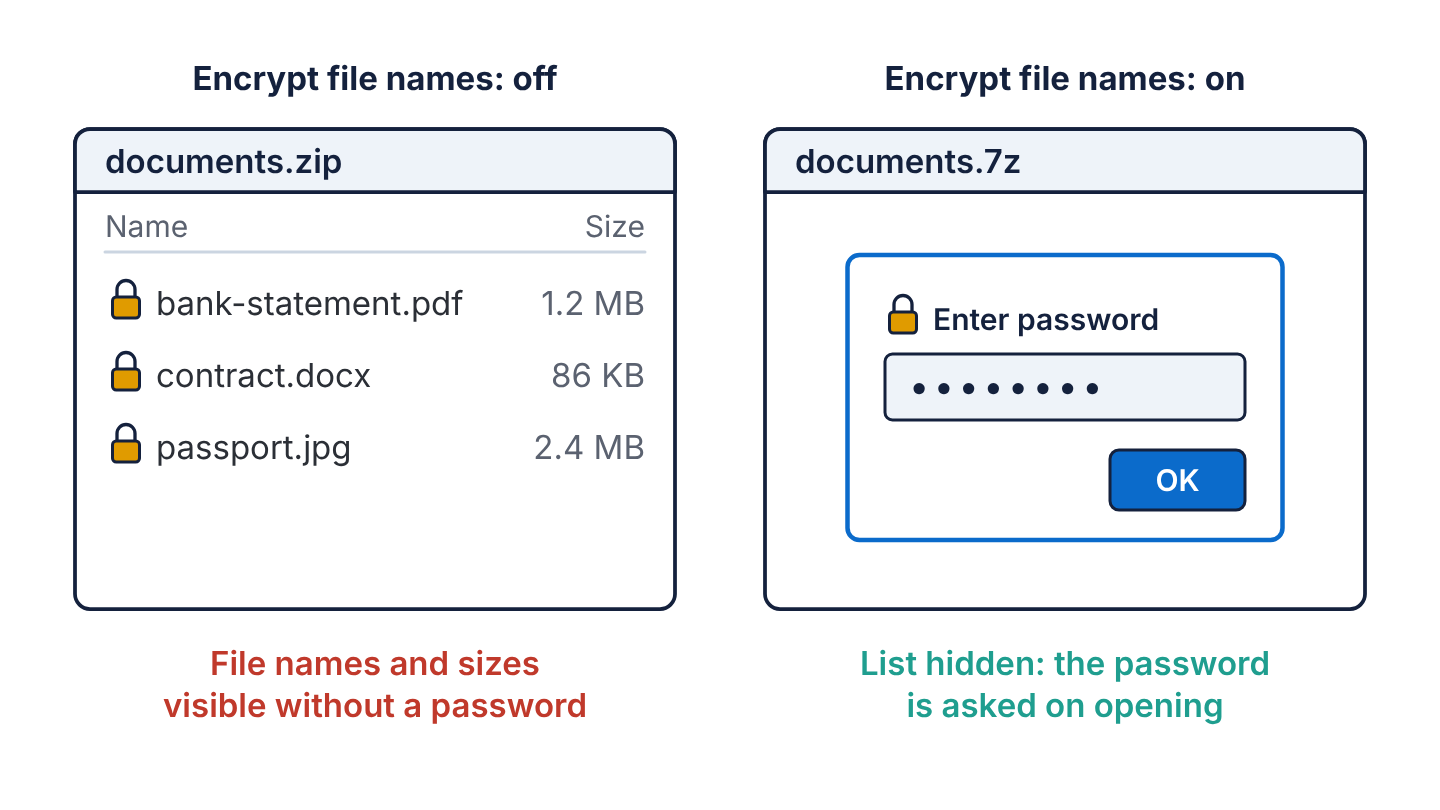
Open the new archive and test the password. If the goal is privacy on your own drive, delete the unencrypted originals once you have checked; a locked archive protects nothing while an open copy sits next to it.
On Android with ZArchiver
- Tap the icon to the left of each file name to select it, then tap one of the selected files and choose Compress.
- Name the archive and pick 7z or zip under Archive format.
- Type the password in the Password field and tap OK. Extra options such as the encryption method depend on the app version and format.
The password itself
- At least 12 characters; a phrase of unrelated words is easy to remember and hard to guess. AES-256 is strong, but a six-digit password makes it close to worthless, because attackers try likely passwords rather than attack the cipher.
- Stick to standard Latin letters, digits and symbols. Some older tools handle non-Latin characters differently, and the correct password then fails on another machine.
- Never send the password in the same message as the file. For the file itself, see free ways to send large files.
Remember that an archive protects files only while stored or in transit. Once the recipient extracts them, those copies are ordinary unprotected files.
Split a large file into parts, and join them again
Splitting helps when the limit sits in the medium itself: a FAT32 USB stick refuses any single file over about 4 GB, a service caps the size of one file, or a weak connection means you would rather re-upload one failed part than the whole thing. To send a file, a Google Drive or OneDrive link usually beats splitting. For a USB stick, formatting it as exFAT removes the single-file limit, provided the device you plug it into reads exFAT; see FAT32 vs exFAT vs NTFS.
Splitting with 7-Zip
- Right-click the file or folder, then 7-Zip, Add to archive…
- Choose 7z, or zip if the recipient will open the parts in another app.
- In Split to volumes, bytes, type the size:
20Mfor 20 MB parts,1Gfor 1 GB parts. - For video or photos, set Compression level to Store. They are already compressed, so compressing again only wastes time. Click OK.
Pick a part size a little under your target, not equal to it. If an email limit is 25 MB, use 20 MB parts, because email encoding inflates attachments. On Android, the RAR app creates RAR volumes and ZArchiver creates split 7z archives, both from their compress options.
Which part do you open?
| Names look like | Usually made by | Open this one |
|---|---|---|
file.7z.001, file.7z.002 |
7-Zip | file.7z.001 |
file.part1.rar, file.part2.rar |
WinRAR or the RAR app | file.part1.rar |
file.rar, file.r00, file.r01 |
Older WinRAR versions | file.rar |
file.zip, file.z01, file.z02 |
Other ZIP tools | file.zip, with all parts present |
video.mp4.001, video.mp4.002 |
7-Zip’s Split file command (raw pieces) | None: join them first |
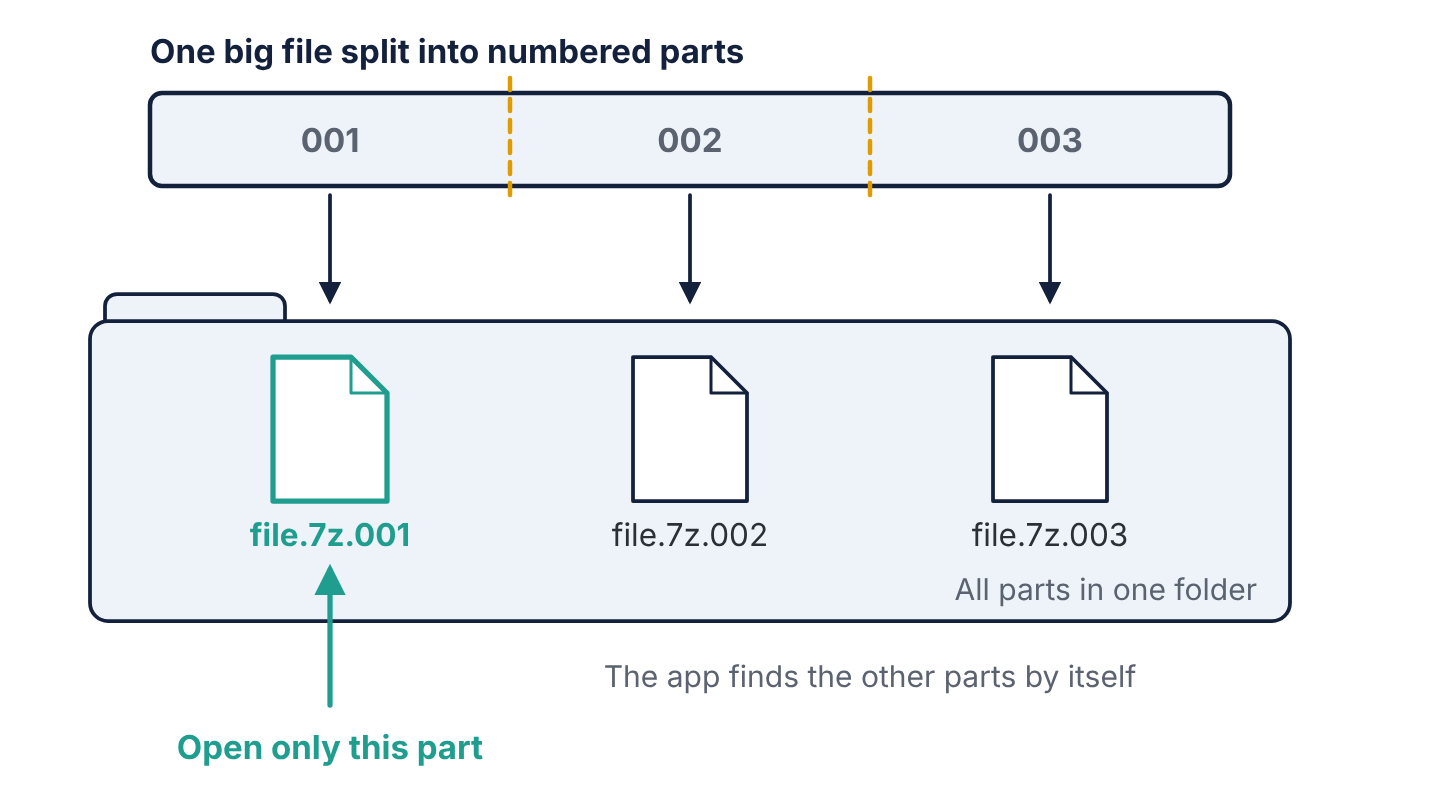
To join an archive, put every part in one folder without renaming anything and open only the first part in 7-Zip or ZArchiver; it finds the rest. Raw pieces such as video.mp4.001 are not extracted but glued back together: in 7-Zip File Manager select the first piece and choose File, Combine files… Without 7-Zip, the Windows Command Prompt can do it inside that folder:
copy /b video.mp4.001+video.mp4.002+video.mp4.003 video.mp4
List the parts in the right order. A wrong order gives a file of the correct size that does not play, so size alone proves nothing.
Why joining usually fails
- “You need to start extraction from a previous volume”: you opened a part other than the first, or one is missing. Count them; only the last part is normally smaller than the rest.
- A duplicate with a new name: download a part twice and the browser calls it
file.part2 (1).rar, so the app cannot find it. Rename it to the exact original name. - One damaged part: re-download just that part, not all of them.
- Parts from two different split jobs never mix, even if the sizes look alike.
A correct join gives an exact copy of the original. To be certain, compare the SHA-256 checksum of both files.
tar, gz and tar.gz files
A tar.gz really is an archive inside an archive. tar bundles files and folders into one file without compressing them, and gz compresses a single file. Linux tools bundle with tar and then compress with gz, which gives .tar.gz or .tgz. .tar.xz and .tar.bz2 are the same idea with another compression method, while a lone backup.sql.gz holds just one file.
- Windows 11 (23H2 or later): right-click, Extract All, like any ZIP.
- Windows 10: it has had a built-in tar command since about 2018. Open the folder, type
cmdin the address bar and press Enter, then runmkdir outandtar -xf archive.tar.gz -C out. The folder after-Cmust already exist. - 7-Zip: the first extraction gives you a
.tarfile, not your files, because it only removed the gz layer. Extract the tar file too. - Android: ZArchiver usually handles both layers; if you only get a tar file, extract that as well.
Expect warnings about symbolic links or names with characters Windows rejects, such as colons; they usually affect minor files. And most programs inside tar.gz files are built for Linux and will not run on Windows or Android, so read the README first.
When you get an error
- It asks for a password you never set: whoever created the archive set it. It has nothing to do with your phone or email password, so ask the sender.
- “Unexpected end of archive” or “archive is corrupt”: in most cases the download did not finish. Compare the file size with the size at the source and download again before trying anything clever. If there is no other copy, the RAR app’s Repair command is worth a try.
- Not enough space: extracted files usually take more room than the archive, and split archives need room for the parts and the result together. Extract to an SD card if you have one.
- Garbled file names: the archive was made with an old name encoding. Try another app; the contents themselves are usually fine.
Never run an .exe or .apk that came out of an archive from a source you don’t trust. Archives are a favorite way to slip malware past people, so scan the file with VirusTotal first.
Special cases
I forgot the password to my own archive
With AES-256 and a strong password, there is no practical way back in; that is the point of encryption. Stay away from “password cracker” downloads, which are frequently malware.
The recipient says Windows won’t open it
Expected. Windows does not handle encrypted archives, even on versions that open RAR and 7z. They need 7-Zip on a PC or ZArchiver on Android.
The recipient uses an iPhone
The iPhone Files app works mainly with ZIP, so 7z or RAR needs a third-party app from the App Store. When you don’t know the recipient’s device, ZIP (with AES-256 if it needs a password) is the safest choice.